
Step by step RAID creation in HP DL380 G8 server
First off all we have to reboot our HP DL380 G8 server and we have to check console windows. Then we can get F8 option on console windows where we have to press F8 to goto RAID configuration option windows. Like below.

Once we have pressed F8 key then we can get RAID creation option windows. Where we can create RAID like below.

You can see in below screen shot, now we have RAID configuration windows. We can select Create Logical Drive option to create RAID. We can also view and delete our logical drive using these option. Now I am go to create RAID 0 with one disk option.
You can see here I have selected one disk and RAID 0 has been seleceted. We can select or unselect disk with press space bar key. Once we have selected disk and RAID option, then we can press enter to create logical drive.

Now we have to press F8 to save our RAID configuration.
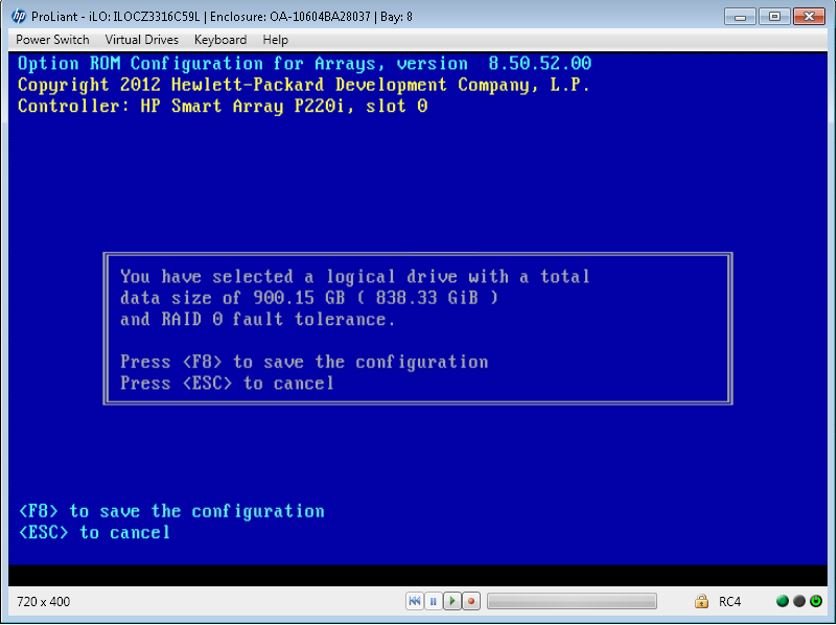
After F8 press to save the configuration we will get below windows.
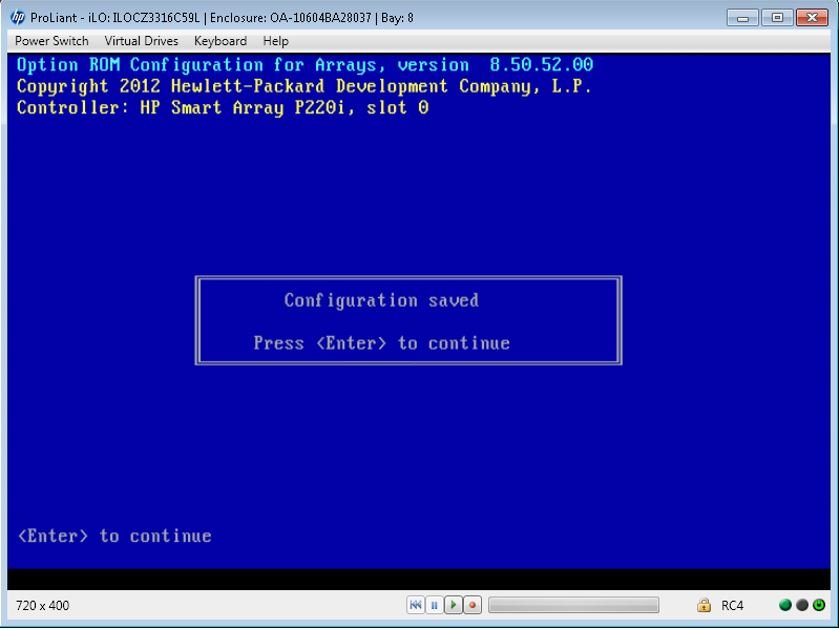
Now we have to press enter to confirm our RAID configuration. After that we have successfully RAID configuration. Then we will see our RAID configuration main windows. where we can view our created RAID details.
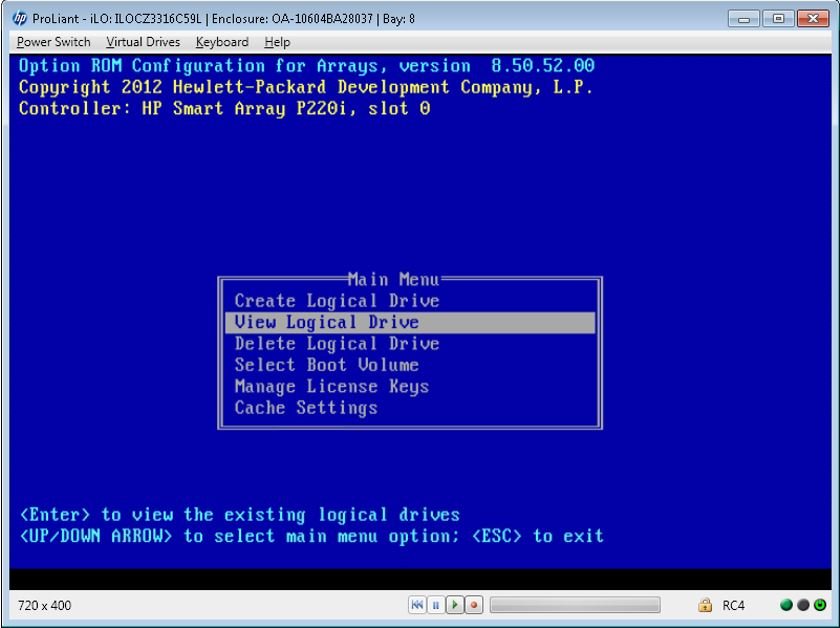
Now I am going to select View Logical Drive to see our created RAID configuration. Once we entered this option then we will get created RAID details like below.
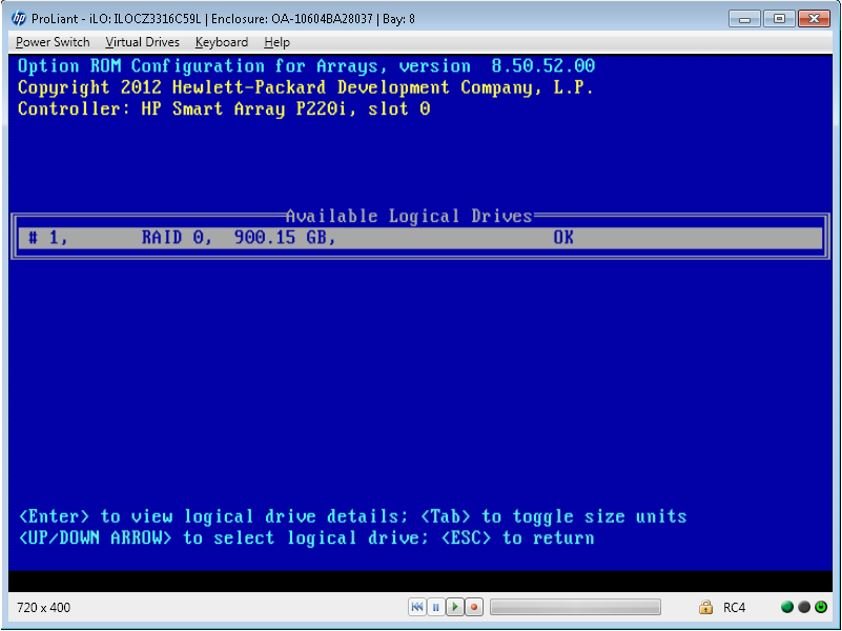
You can see in above windows, we have successfully created RAID 0 with once disk.



